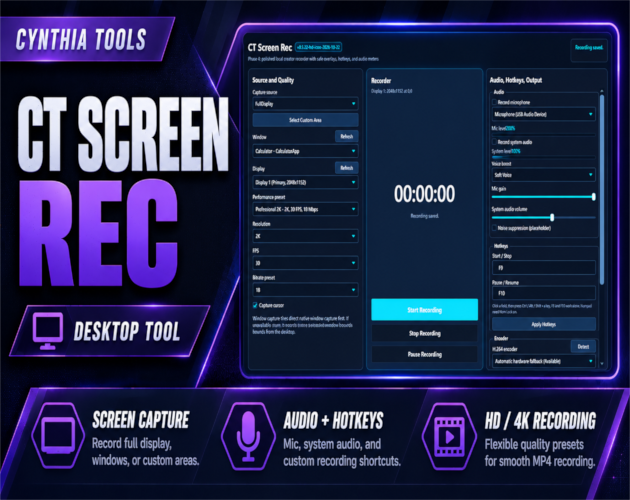
# CT Screen Rec — Windows Screen Recorder for HD & 4K MP4 Video
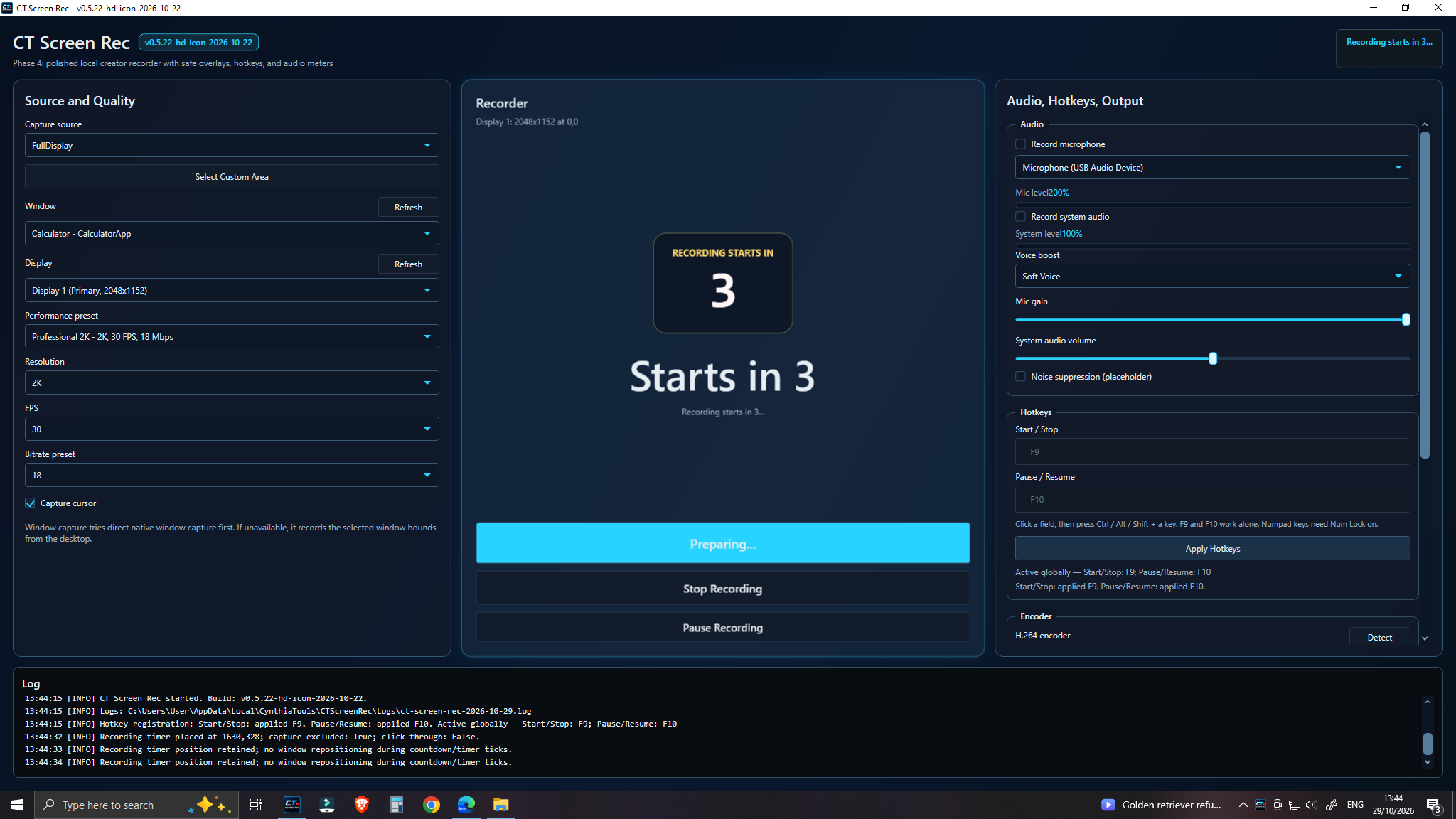
CT Screen Rec is a screen recording application for Windows 10 and Windows 11 (64-bit). It captures your full desktop, an application window, or a custom-selected area as H.264 MP4 video. Use it to record gameplay, create video tutorials, demonstrate software, capture presentations, or show a bug to someone who needs to see it.
You can configure video quality, capture microphone and/or system audio, and control recordings using customizable keyboard shortcuts. Recordings are saved to your computer; CT Screen Rec does not require an account or upload your videos to the cloud.
What can you record with CT Screen Rec?
- Full screen: Capture an entire display when you need to show the complete desktop or gameplay.
- Specific application window: Record the window you want to demonstrate.
- Custom screen area: Select a region of the screen for focused tutorials, walkthroughs or bug reports.
Screen recording features
- MP4 (H.264) recording: Adjust resolution, frame rate and bitrate to suit your project.
- HD, 2K and 4K quality presets: Available presets include 1080p, 2K, 1080p at 60 FPS, and 4K. Actual recording performance depends on your PC.
- Microphone and desktop audio: Record your voice, system sound, both sources together, or video without audio.
- Recording hotkeys: Configure keyboard shortcuts to start, stop, pause and resume recording.
- Pause and resume: Pause a session and continue recording when ready.
- Hardware-accelerated encoding: NVIDIA NVENC, Intel Quick Sync and AMD AMF are supported where available, with software encoding fallback depending on your system.
- Audio controls: View live audio meters and adjust microphone or system-audio volume, with voice boost presets.
- Movable recording timer: Keep track of recording duration with a capture-aware timer.
- Local file management: Set an output folder, access recent recordings and use automatically generated filenames.
Who is CT Screen Rec for?
CT Screen Rec is useful for Windows gamers, YouTube creators, teachers, students, software developers, technical support teams and anyone recording their desktop. Typical projects include gameplay footage, how-to videos, product demonstrations, lesson recordings and reproducible bug reports.
How to record your screen on Windows
- Download CT Screen Rec from the official itch.io listing, extract the ZIP and run the included Windows installer.
- Launch CT Screen Rec and choose whether to capture the full display, an application window or a selected screen region.
- Select a recording preset, or adjust the available video-quality settings.
- Choose microphone and/or system-audio recording and set your output folder.
- Start recording using the application's controls or your configured hotkeys. Pause or resume as needed, then stop recording.
- Open your output folder or recent recordings to find your MP4 video.
Windows compatibility and recording format
- Operating system: Windows 10 or Windows 11, 64-bit.
- Video format: MP4 with H.264 encoding.
- Recording quality: 1080p, 2K, 1080p/60 FPS and 4K presets are listed; achievable quality depends on your computer and encoder support.
- Local recording: Video files are saved to your PC; no account registration or cloud video upload is required.
Frequently asked questions
Can CT Screen Rec record just one window or part of my screen?
Yes. You can record an entire display, a particular application window or a custom-selected screen area.
Can it record microphone audio and Windows system sound together?
Yes. You can record microphone input, system audio, both sources or neither.
Does it support 4K screen recording?
CT Screen Rec includes a 4K recording preset. Performance and achievable quality depend on your computer's hardware. It also provides a separate 1080p/60 FPS preset.
What video format does CT Screen Rec save?
Recordings use MP4 video with H.264 encoding.
Do I need an account or cloud storage to record?
No. CT Screen Rec records locally and does not require account registration or cloud video uploads.
Can I use CT Screen Rec to make gameplay videos or software tutorials?
Yes. Gameplay capture, tutorials, application demonstrations and bug-report recordings are among its intended uses.
Get CT Screen Rec
Download/purchase on itch.io: https://cynthiatool.itch.io/ct-screen-rec-windows-screen-recorder-hd-4k-recording
Cynthia Tools product page: https://cynthiatools.com/tools/ct-screen-rec-windows-screen-recorder-hd-4k-recording
Developed by Cynthia Tools. If a feature does not behave as expected, please share feedback or a bug report so the software can be improved.




 Tools
Tools