news · 2026-11-12
CT Quest System v1.0.23: Custom NPC Quest Markers & Tracker Controls
CT Quest System v1.0.23 for RPG Maker MZ adds 10 NPC quest marker colors, an in-game Quest Tracker position command, journal shortcut hints and improved tracker clicks.
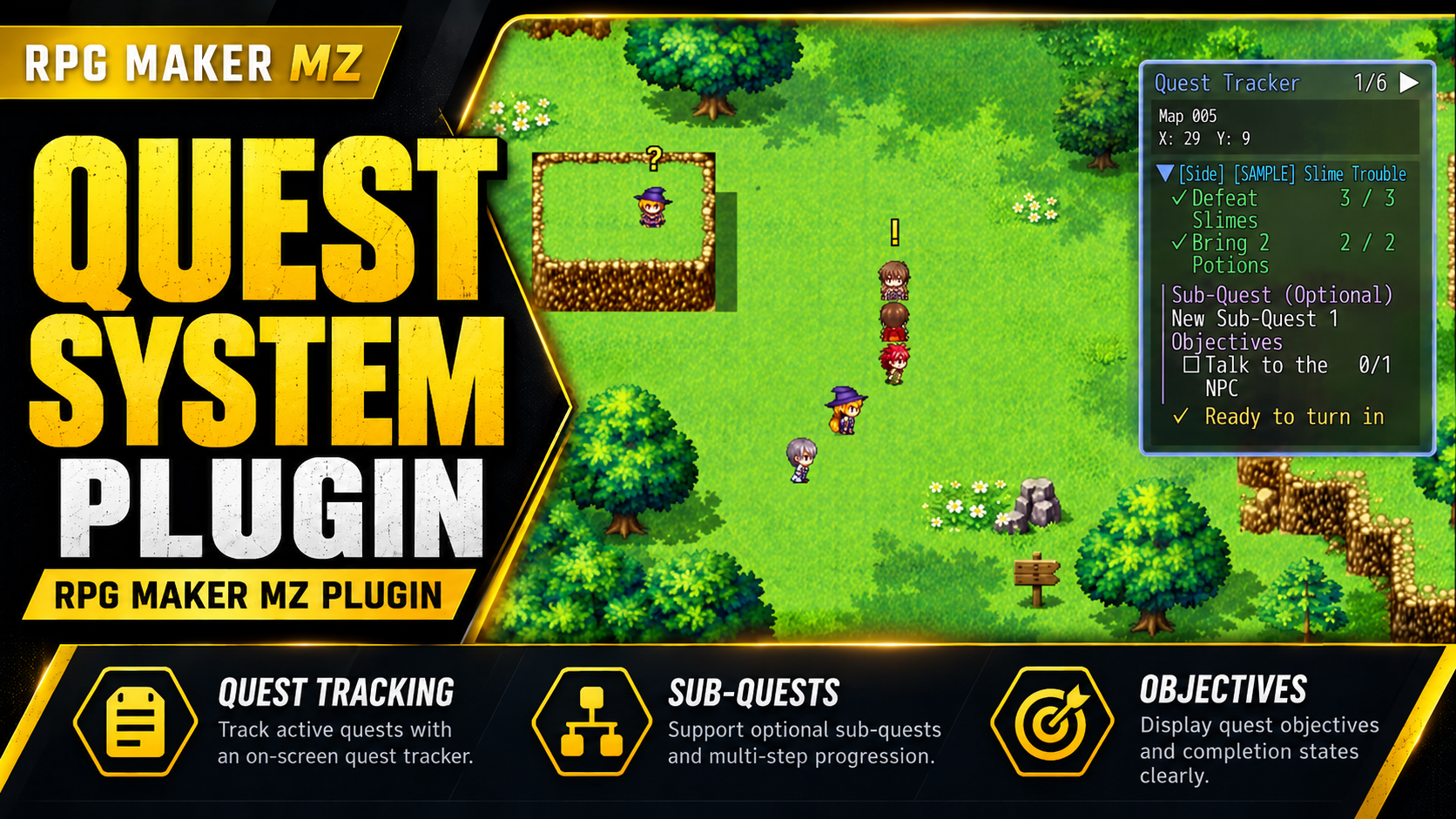
CT Quest System v1.0.23 is an update to the CT Quest System plugin for RPG Maker MZ. It adds custom colors for NPC quest markers, a Plugin Command to reposition the on-map Quest Tracker, and a shortcut hint for opening the Quest Journal. It also prevents accidental journal opening when players click quest titles in the tracker. These changes help RPG Maker MZ developers tailor quest indicators and the quest interface to different maps and HUD layouts.
What's new in CT Quest System v1.0.23?
- Customize NPC quest marker colors
Set the colors of NPC quest markers using RPG Maker MZ Plugin Commands. The update supports both ! markers for available quests and ? markers for quests ready to turn in.
• Choose from 10 preset colors: Yellow, White, Red, Green, Blue, Cyan, Purple, Pink, Orange and Grey.
• Set different marker colors for different NPCs.
• Find the color dropdowns near the top of the relevant Plugin Commands, before the Quest ID fields.
• Use these options with Quest Giver, Quest Turn-In, and Quest NPC (Offer + Turn-In) commands.
• Existing event commands remain compatible.
This is useful when you want quest-giver and turn-in indicators to fit a character, region or interface theme without rebuilding your events.
- Quest Tracker clicks no longer open the journal unexpectedly
Clicking a quest title inside the on-screen Quest Tracker no longer automatically opens the Quest Journal. That reduces accidental navigation while players are interacting with the map.
Players can still open the Quest Journal through the configured keyboard shortcut or the main menu. Tracker collapse/expand and scrolling continue to work.
- Move the Quest Tracker with a Plugin Command
The new Quest Tracker Position Plugin Command lets developers change tracker placement during gameplay:
• Left: show the tracker on the left side of the screen.
• Right: show the tracker on the right side of the screen.
• Reset: restore the default position from the Plugin Manager.
The selected position persists across map transfers and save/load. This is useful for cutscenes, HUD layouts and maps where the tracker should appear on a different side.
- Show the configured Quest Journal key beside the tracker title
The Quest Tracker now displays the Quest Journal keyboard shortcut next to its title. For example, a project using J displays “Quest Tracker (J)”; a project configured for A or Q displays that key instead. The hint follows the shortcut configured in the Plugin Manager, making the journal easier for players to discover.
Stability and compatibility
CT Quest System v1.0.23 retains previous fixes and improvements, including automatic tracker hiding, developer-controlled tracker visibility, map click-through handling and the Erase Event crash fix.
The update passed 37 simulated RPG Maker regression cases. These are simulated checks, so developers should still test the plugin inside their own RPG Maker MZ projects. Existing quest data and save formats remain compatible, and no quest database migration is required.
How to update to v1.0.23
- Download the updated CT Quest System plugin.
- Replace the previous plugin JavaScript file in your RPG Maker MZ project's js/plugins/ folder.
- Keep your existing CT_QuestSystem.json quest database.
- Open RPG Maker MZ, review the new Plugin Command options, and test your project's quests, save/load behavior and tracker placement.
Quick answers for RPG Maker MZ developers
Can I use different quest marker colors for different NPCs?
Yes. Version 1.0.23 provides 10 preset colors for ! quest availability markers and ? quest turn-in markers through the relevant NPC Plugin Commands.
Can I move the on-screen Quest Tracker during gameplay?
Yes. Use the Quest Tracker Position Plugin Command to choose Left, Right or Reset. The setting persists across map transfers and save/load.
How do players open the Quest Journal now?
They can use the configured keyboard shortcut or the main menu. Clicking a quest title in the tracker no longer opens the journal automatically.
Do I need to migrate my existing quest database?
No. Keep CT_QuestSystem.json; the update preserves existing quest data and save formats. Test the update in your project before shipping.
Download CT Quest System v1.0.23
Official CT Quest System product page:
https://cynthiatools.com/plugins/rpg-maker-mz-plugin-ct-quest-system
Download on itch.io:
https://cynthiatool.itch.io/rpg-maker-mz-plugin-ct-quest-system
Thank you to noname1848 for the feedback and suggestions that helped improve the Quest Tracker. Thanks also to everyone in the RPG Maker community who reports issues and shares ideas.
— Cynthia Tools
Explore the tools
RPG Maker MZ. Built-in full-screen quest editor opens with F7 during a playtest. Integrates through RPG Maker MZ events…
RPG Maker MZ Quest System Plugin – CT Visual Quest Editor
Create main quests, side quests and up to 5 sub-quests in RPG Maker MZ with a visual editor, NPC quest givers, journal, tracker and rewards.